User Onboarding Documentation
Logging on to the OpenShift Console
-
Request an account by opening a ticket a https://osticket.massopen.cloud. Provide your organizational or academic email address (NOT YOUR PERSONAL EMAIL).
-
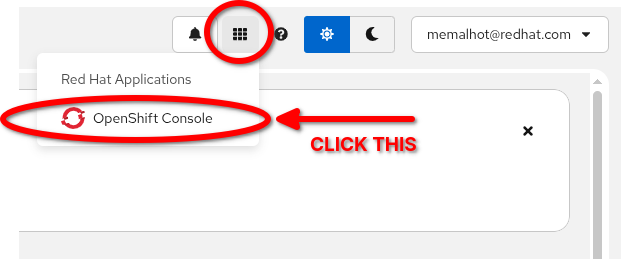
Once you receive notification that your account is available, open your browser and navigate to: https://console-openshift-console.apps.oac-prod-workload0.hcp.oac.massopen.cloud Your screen should look like this:
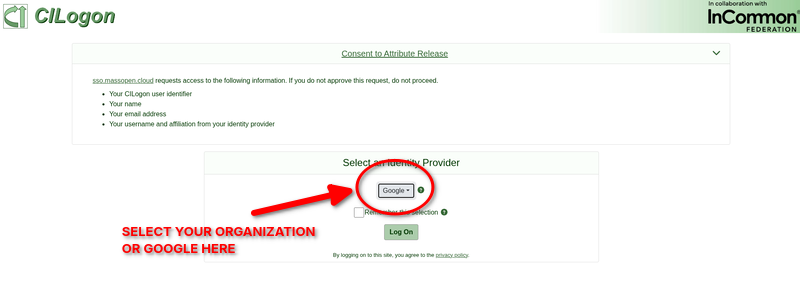
If your organization has an identity provider you use which is listed the drop down, select that. If not, select Google as your identity provider, and then click Log On.
-
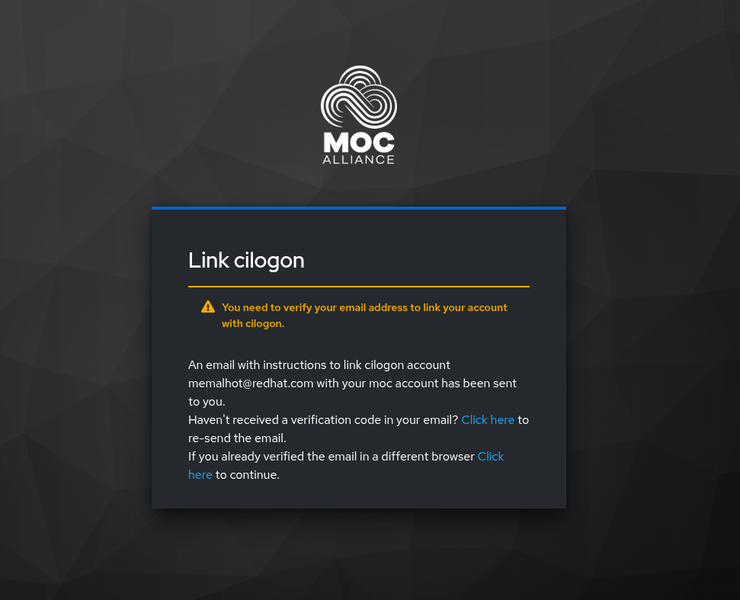
You will need to verify your email address. CHECK THE EMAIL ADDRESS PROVIDED (INCLUDING YOUR SPAM) for an email from the MOC Alliance.
-
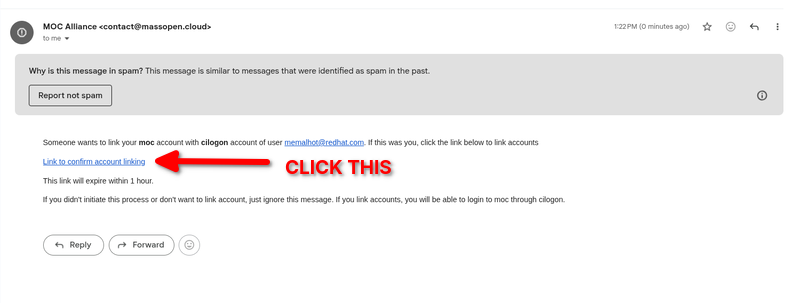
Once you see the email, click the confirmation link to confirm.
-
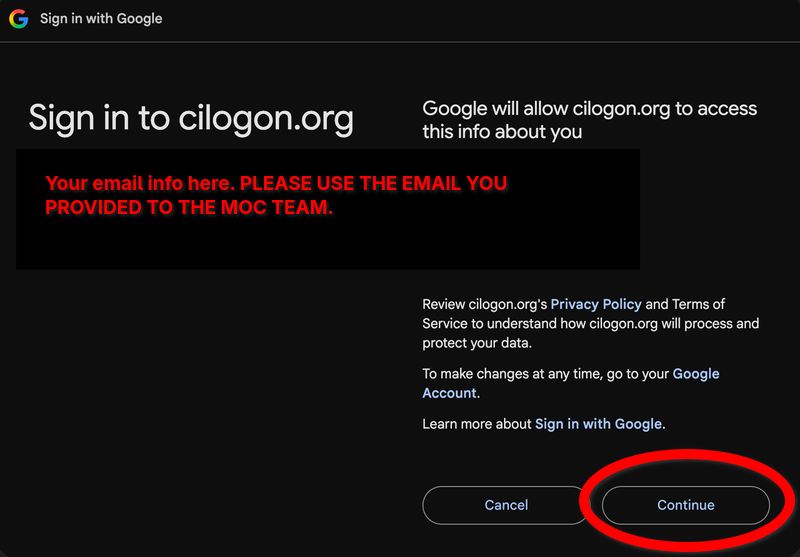
Then log in with the email you provided to the MOC team and press "Continue".
-
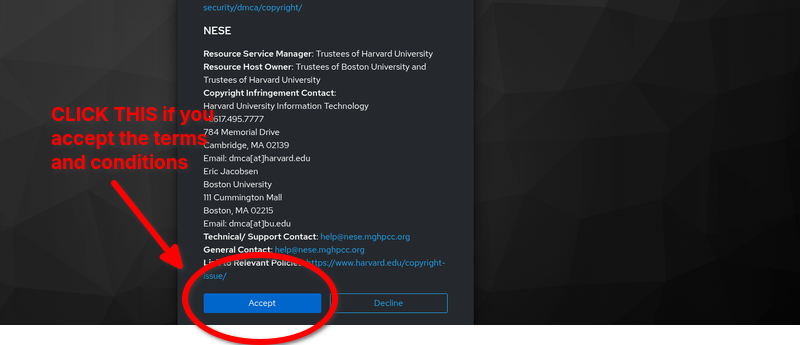
You will be brought to a page that has the terms and conditions. Scroll down and click accept:
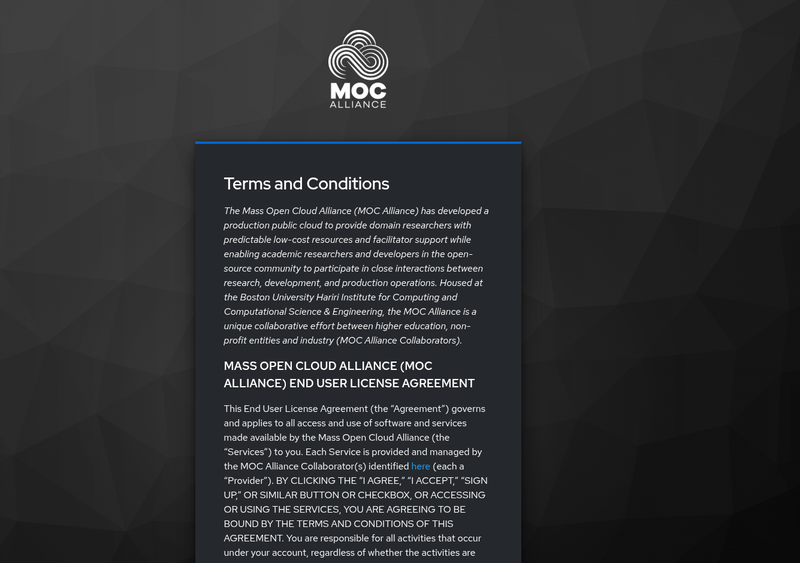
Scroll down until you see the blue accept button...
-
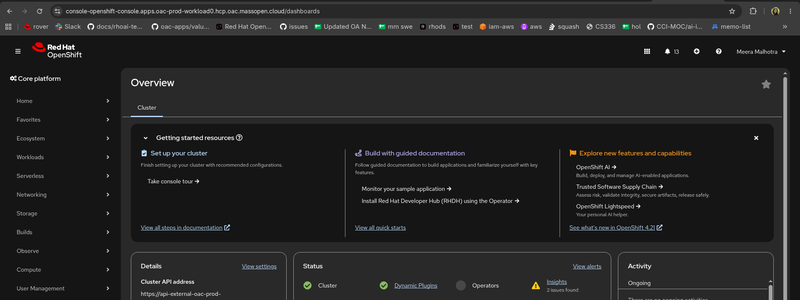
You will now be logged into the OpenShift web console. It will look like this:
Logging in with the CLI
-
To get started up with the
occommand line tool, click the question mark in the upper right corner and select the "Command Line Tolls" option: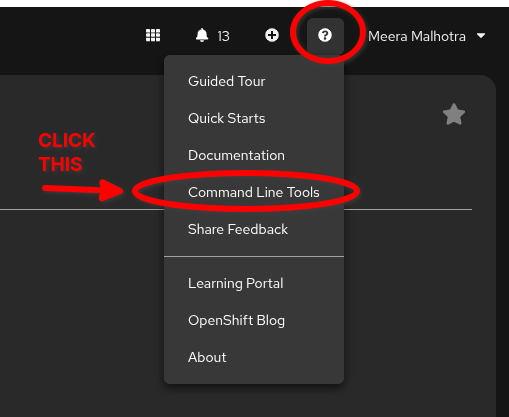
-
You should see this:
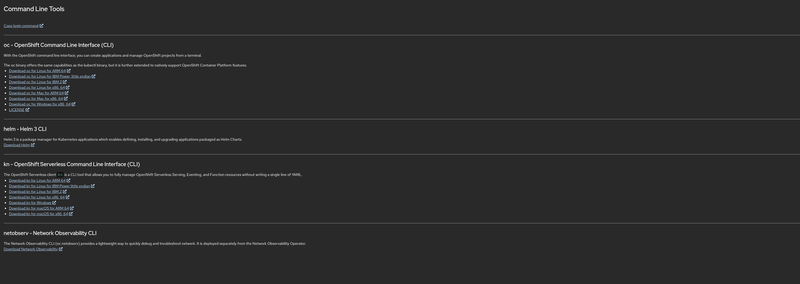
Download the cli that is compatible with your operating system.
-
Once you have the
occli binary, you can log in with your terminal. To do this, go to your terminal and type in:oc login --web https://api-external-oac-prod-workload0.hcp.oac.massopen.cloud:6443It will take you to your browser where you will see this:
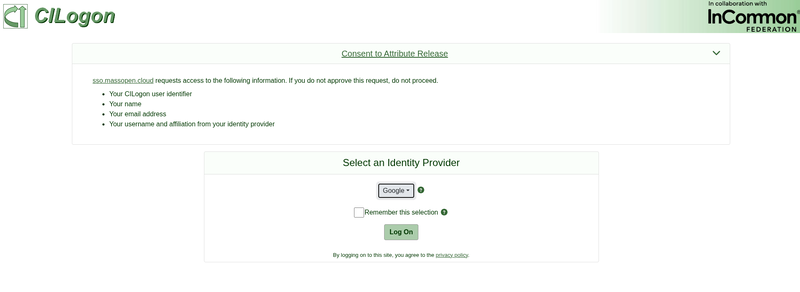
Follow the steps to log in. When successfully logged in, you should see this:

Checking your quota
There is a resource quota associated with your account. You can view the quota and your current utilization by running:
oc get resourcequota
This will produce output like:
NAME                      REQUEST                                                   LIMIT                                     AGE
project-myproject-quota   pods: 0/20, requests.cpu: 0/10, requests.memory: 0/10Gi   limits.cpu: 0/20, limits.memory: 0/40Gi   24h
Your quota is there just to prevent accidental consumption of resources. If you need a higher quota, contact the Open Accelerator support team by opening a ticket at https://osticket.massopen.cloud.
Accessing OpenShift AI
-
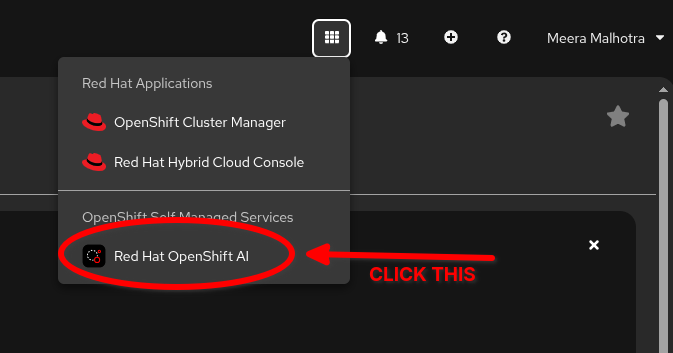
You may want to not just use the OpenShift console, and want to take a look at at OpenShift AI. To do that, go to the console’s top right corner:
-
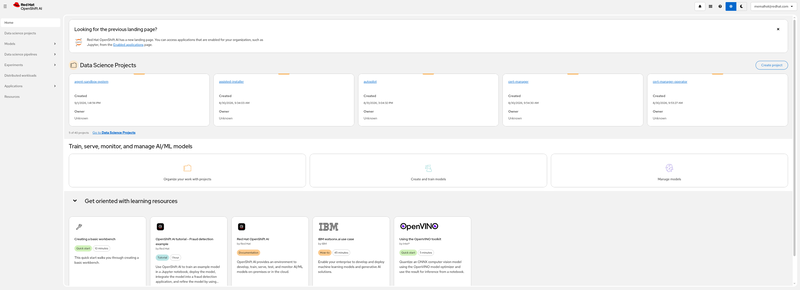
After that you should see OpenShift AI (YOU MAY NOT SEE THE SAME PROJECTS) :
-
To return to the console, go to the right hand corner and click the 9 squares: